Cashington
Guides Start here
Add recurring bills
What you'll do
A recurring bill is a payment you expect every month: the mortgage, the power company, a streaming service. Give it an amount, a due day and the account it's paid from, and Cash Flow shows which bills are paid, which are still coming and which need a look, and what is left in your cash after them. Bills live on Money out, and related ones can share a group, such as Utilities.
Updated October 2026 · Cashington 0.2.8 · 9 steps · screenshots show an invented household
-
Open Money out
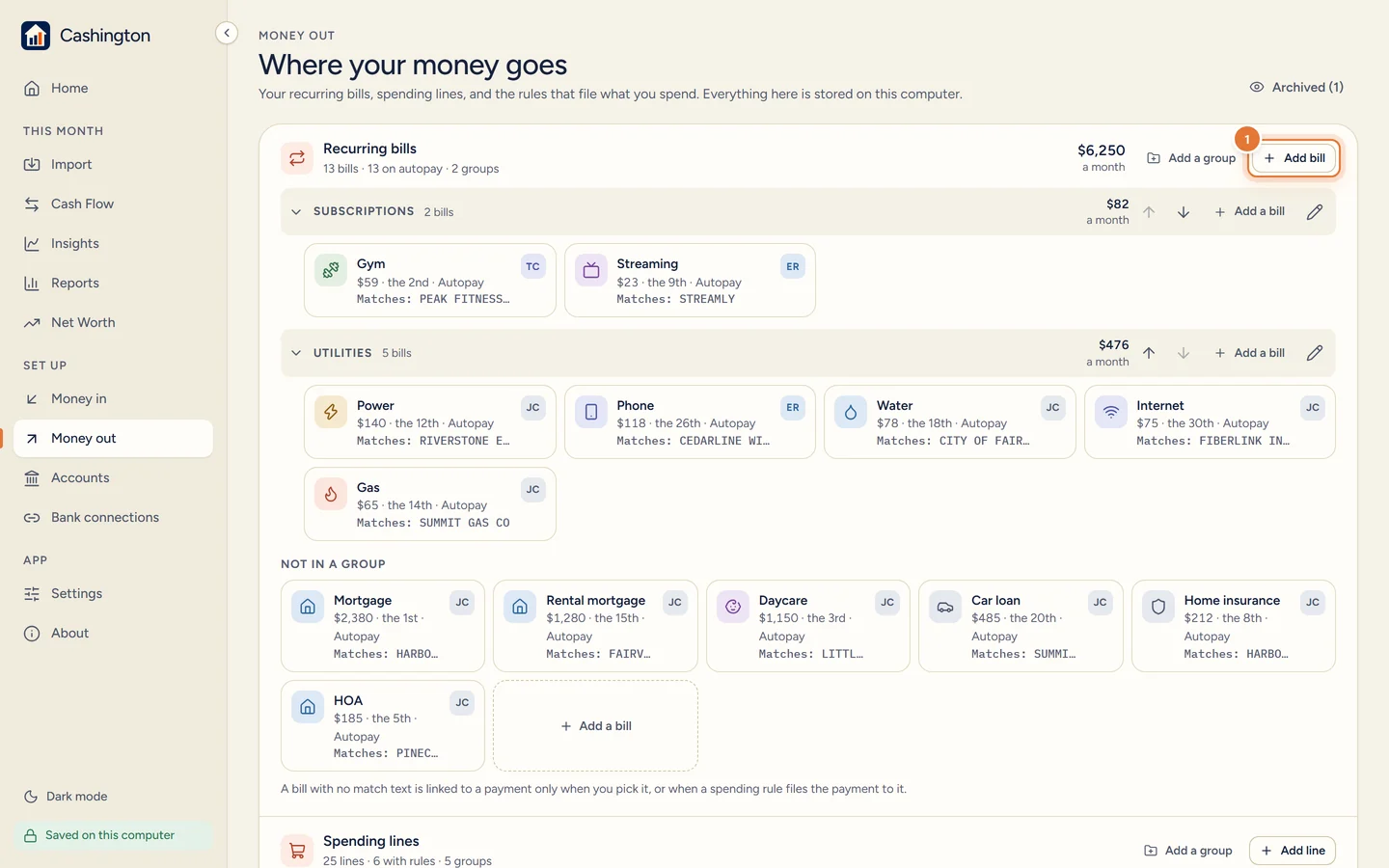
Open Money out, under Set up in the menu. Next to Recurring bills, click Add bill.
-
Describe the bill
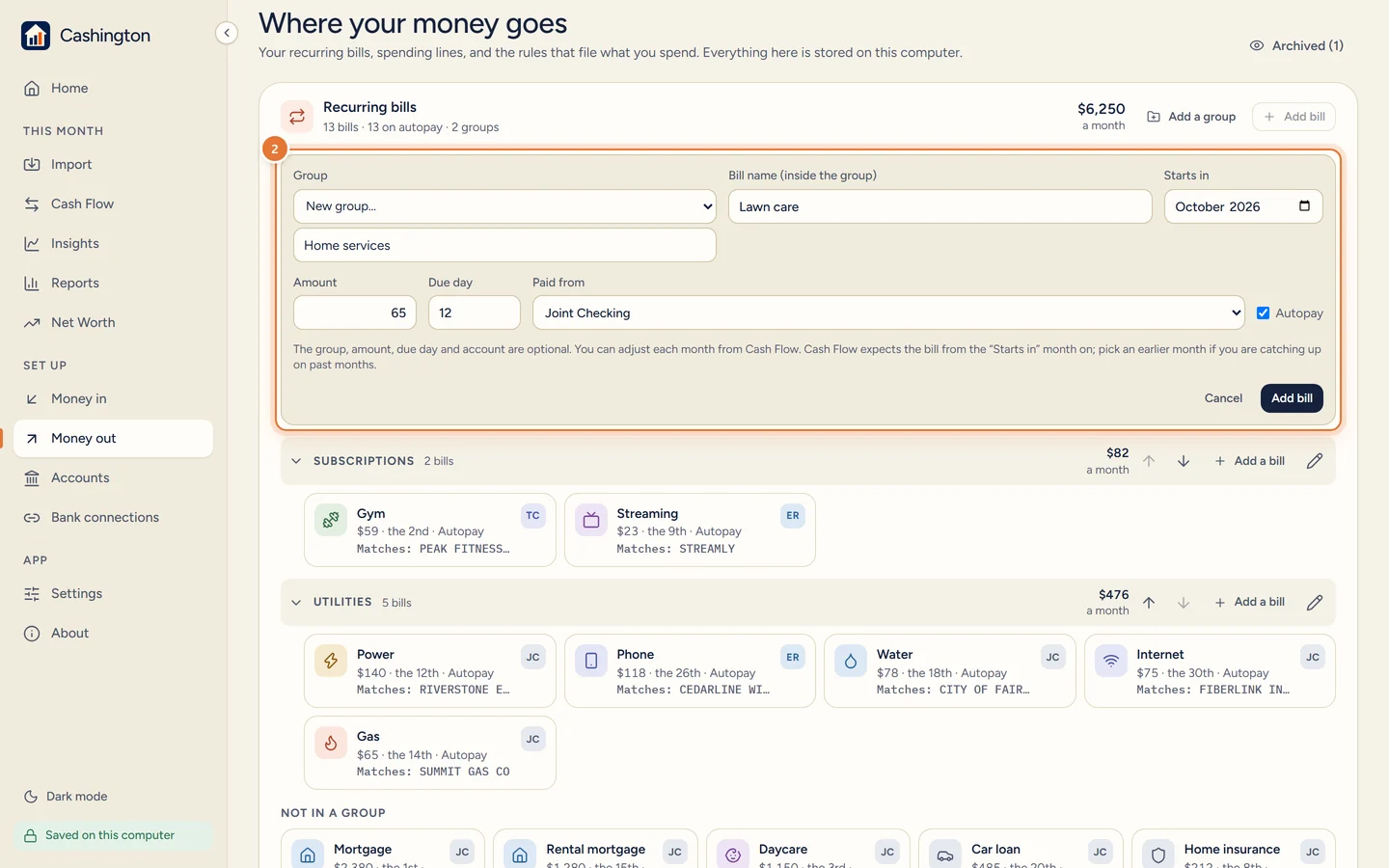
Type the name, the amount and the due day. Pick the account it's paid from and tick Autopay if it pays itself. A group is optional; here it's a new one, Home services. Click Add bill.
-
Open a bill to change it
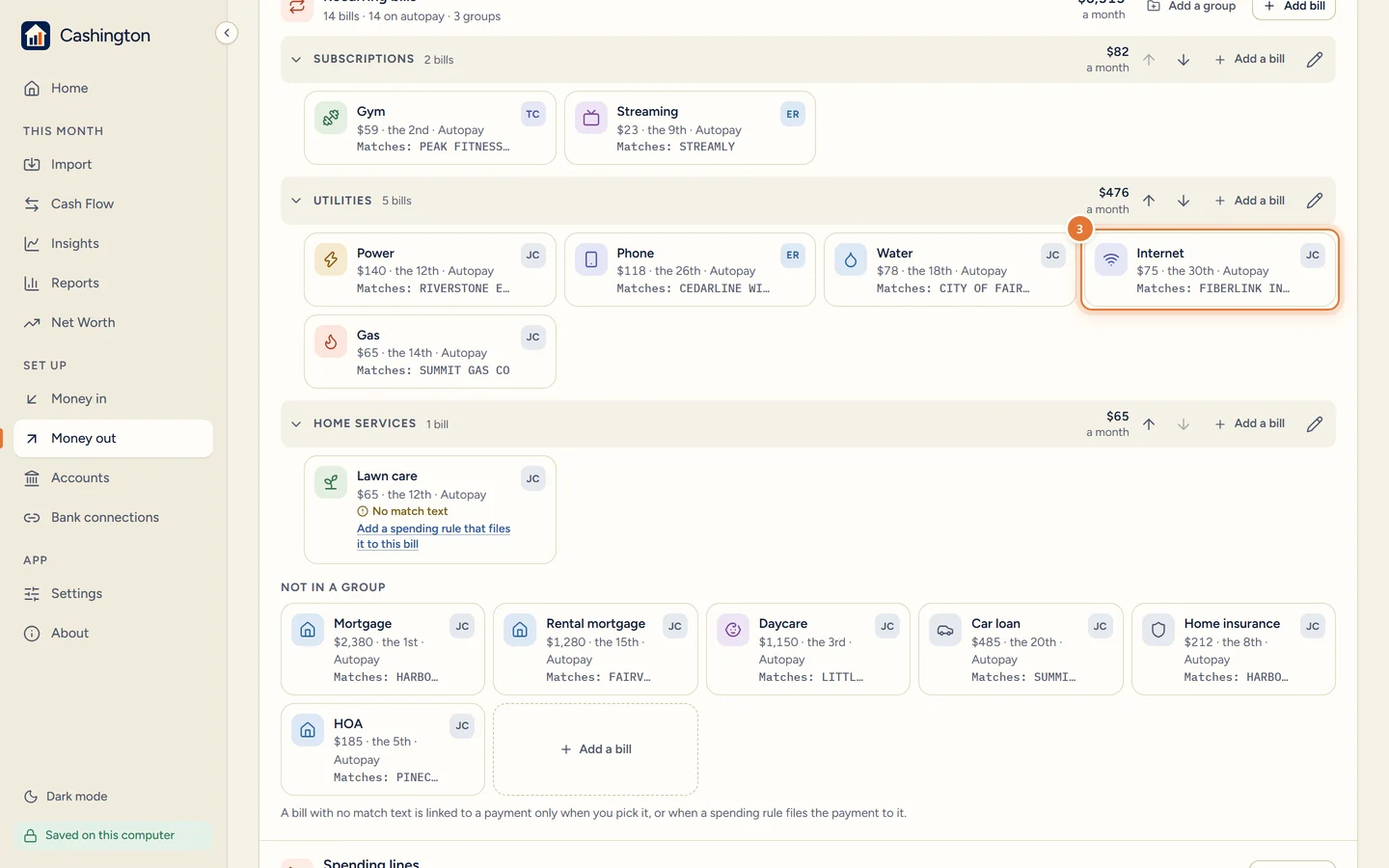
Each bill tile shows its amount, due day, Autopay and the text it matches on your statements. Bills in a group sit under its heading, like Utilities or the new Home services. Click a tile to edit it.
-
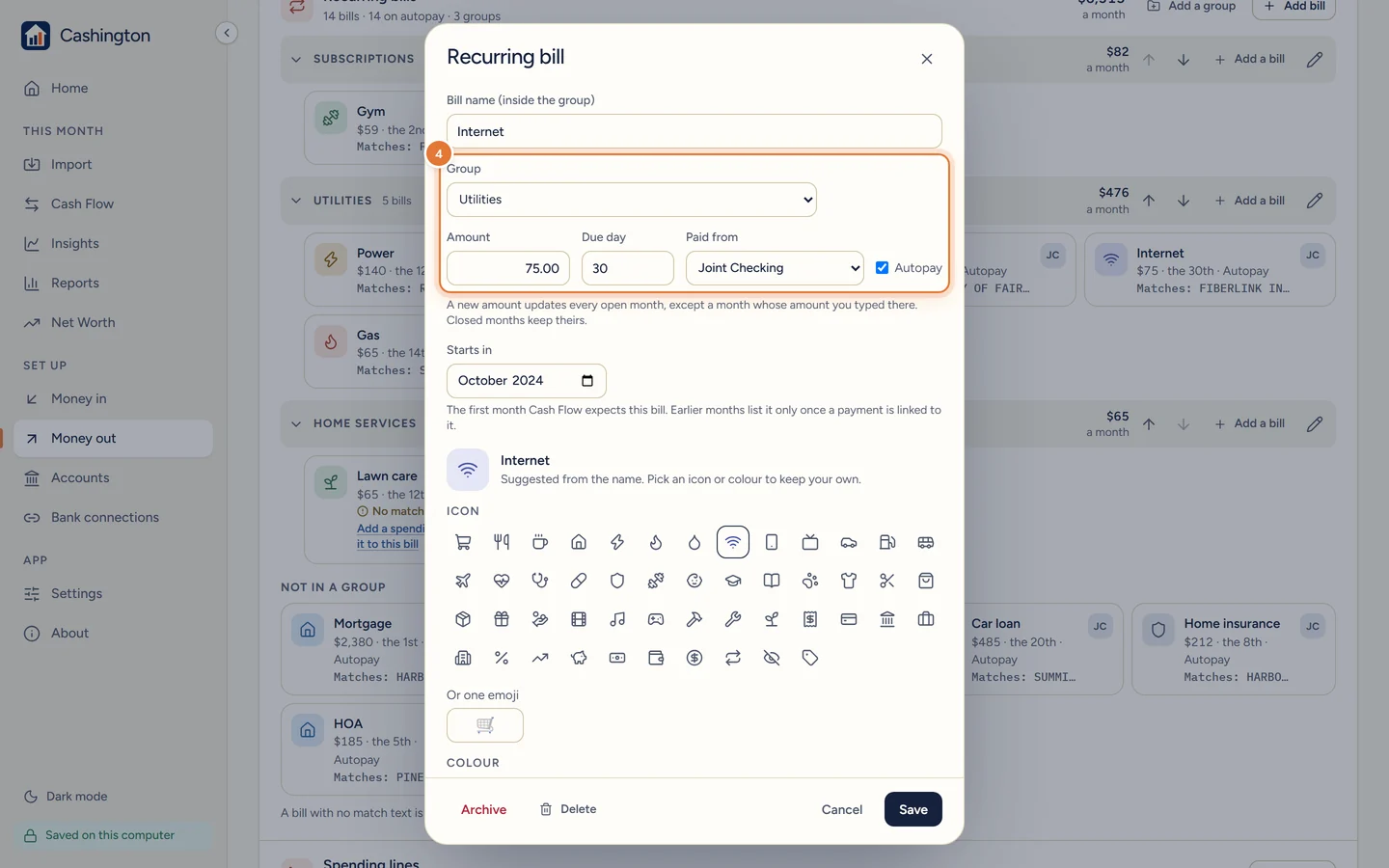
Edit and save
Change the group, the amount, the due day, the account it's paid from or Autopay, then click Save. A new amount updates every open month except one whose amount you typed yourself; closed months keep theirs.
-
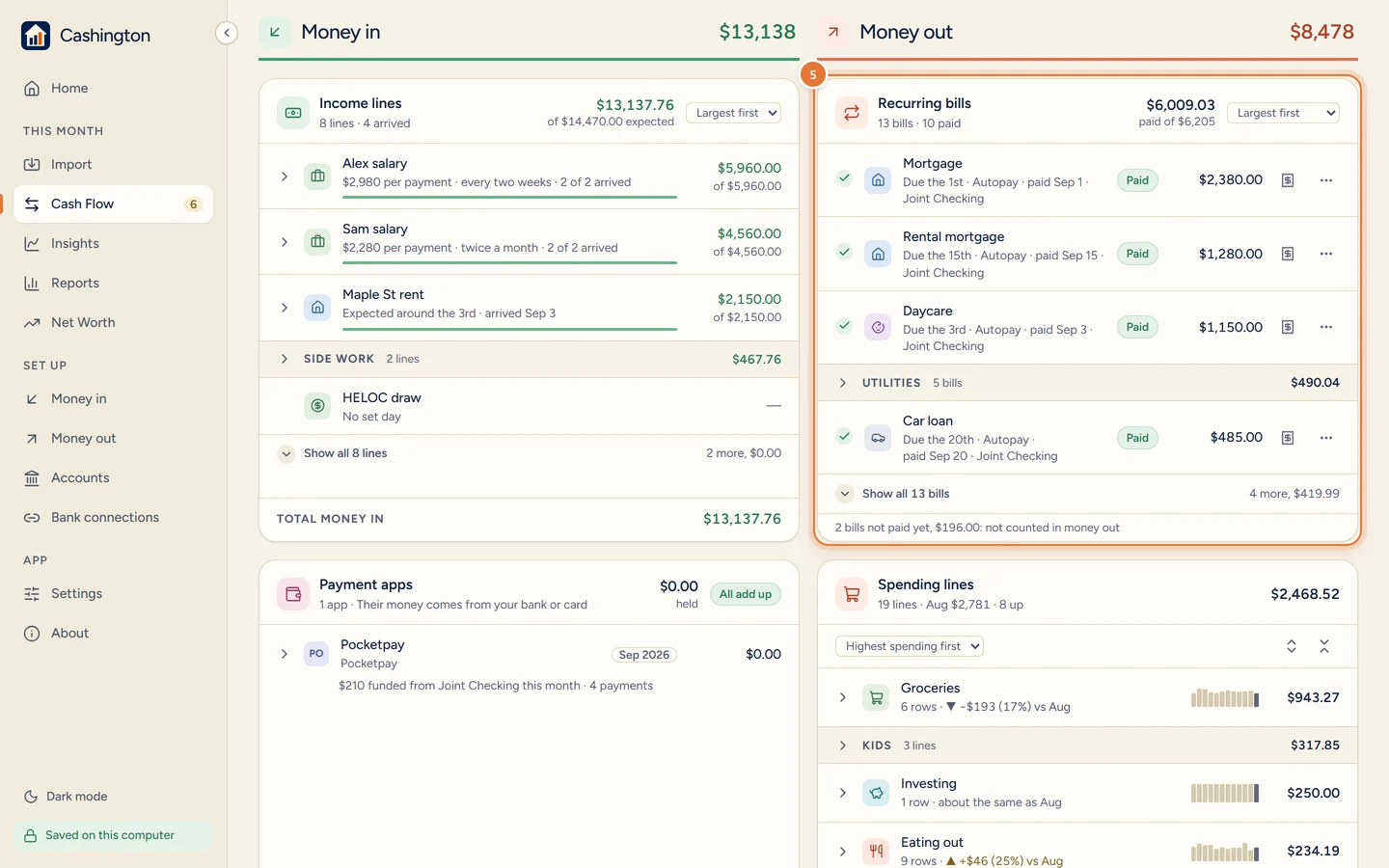
See this month's bills on Cash Flow
On Cash Flow, Recurring bills lists the month's bills largest first, with its groups folded. A paid bill has a green check and one still to come an empty circle. A group keeps its paid and unpaid bills together, and the line under the list says what is not paid yet.
-
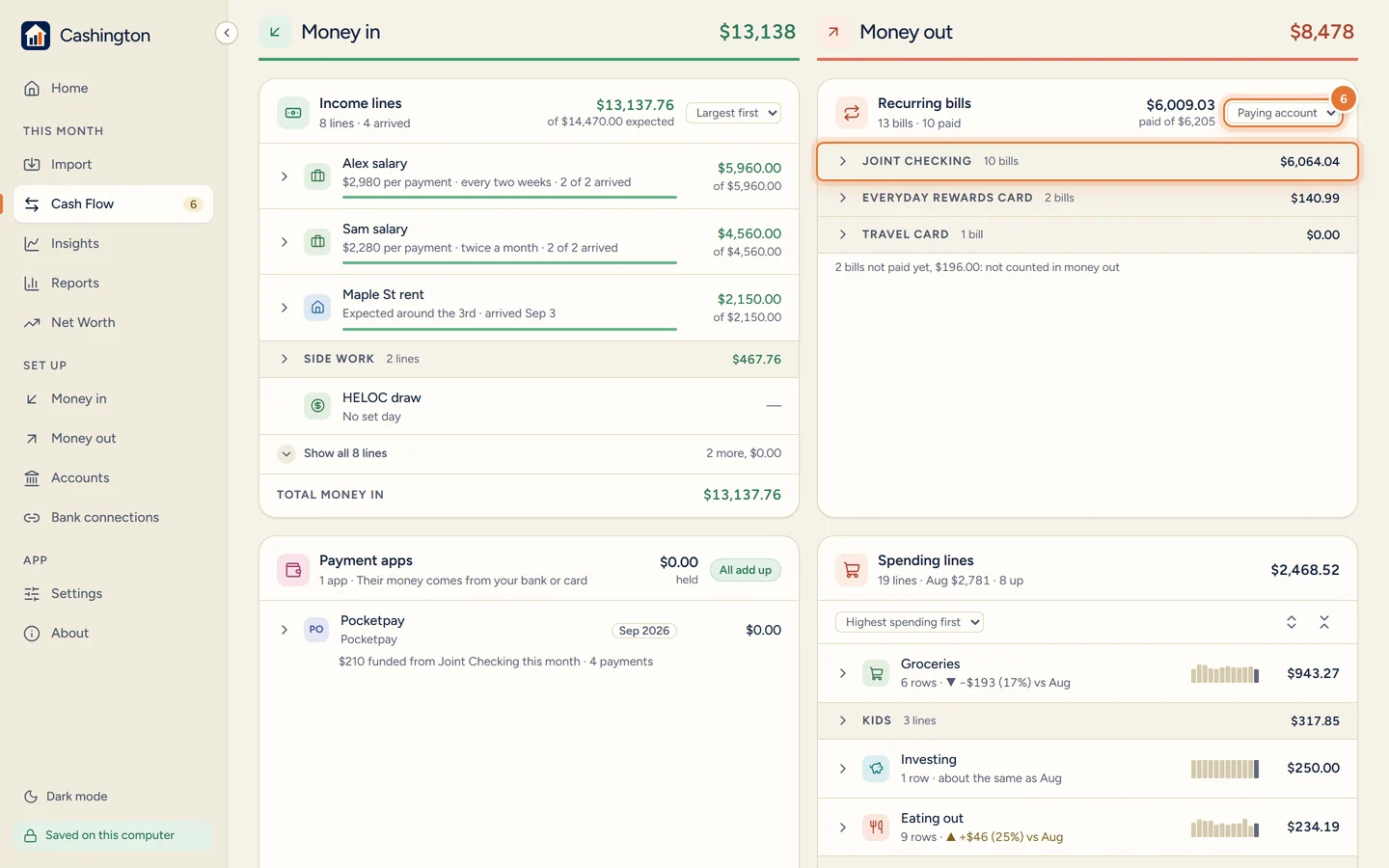
Change the order
The menu next to the total changes the order. Your order lets you drag bills and groups as you like; Paying account shows each account, folded, with the bills it pays, here Joint Checking with its 10 bills. Click an account to open it. Largest first brings the default back.
-
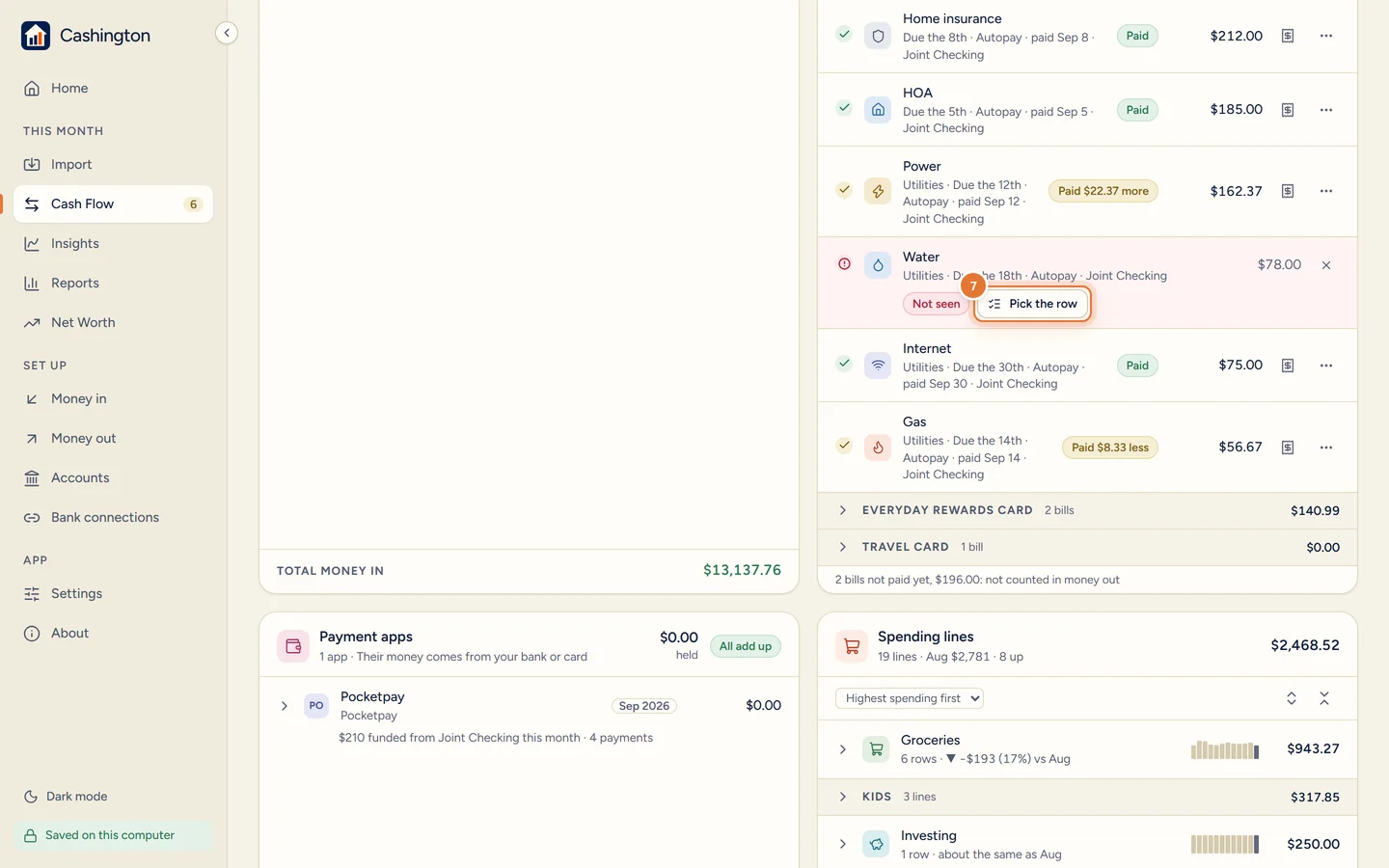
Link a bill Cashington hasn't seen
A bill with no matching payment by its due day has a red mark and says Not seen. Click Pick the row to link the payment yourself, or skip the bill for this month.
-
Choose the accounts that hold your cash
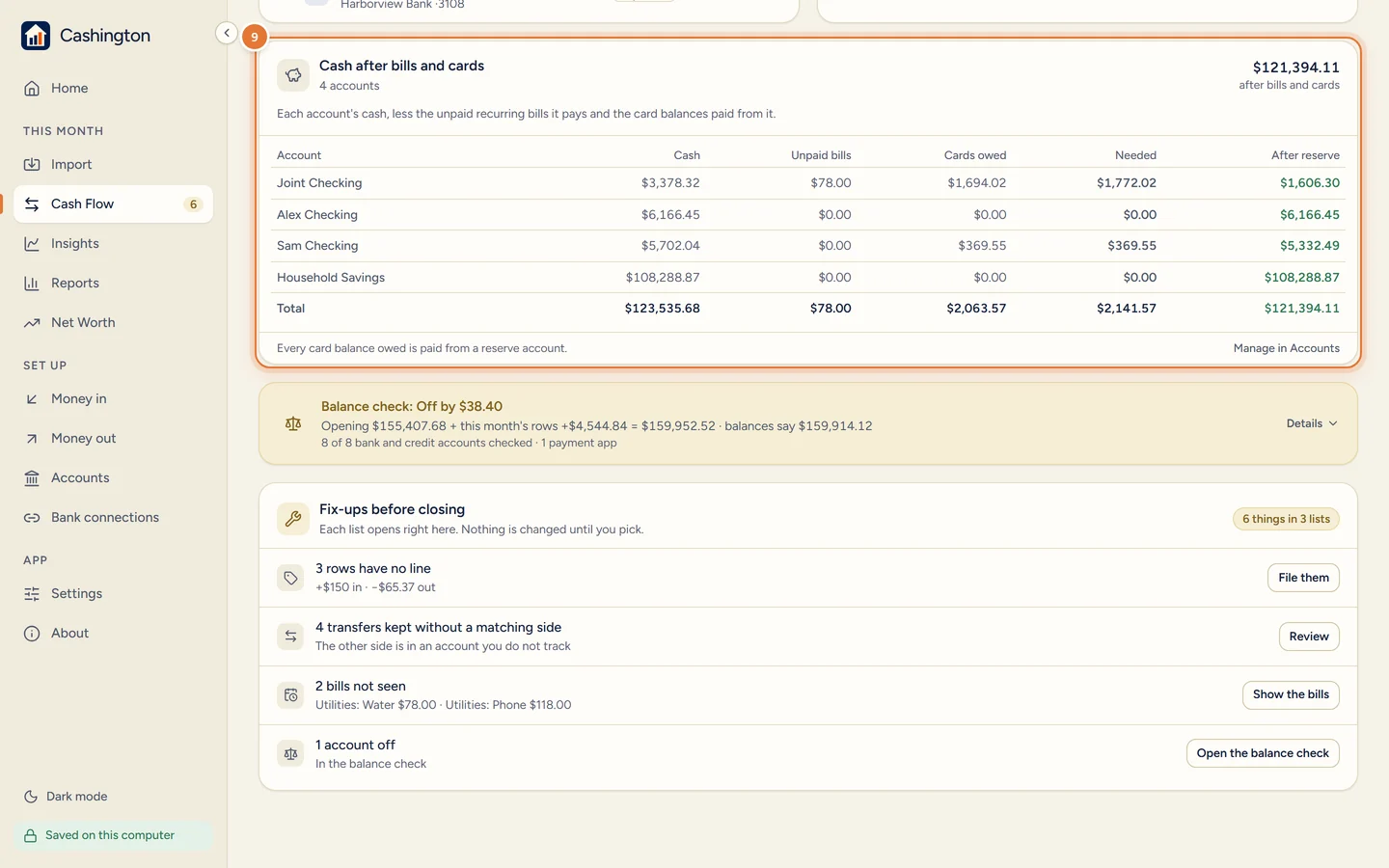
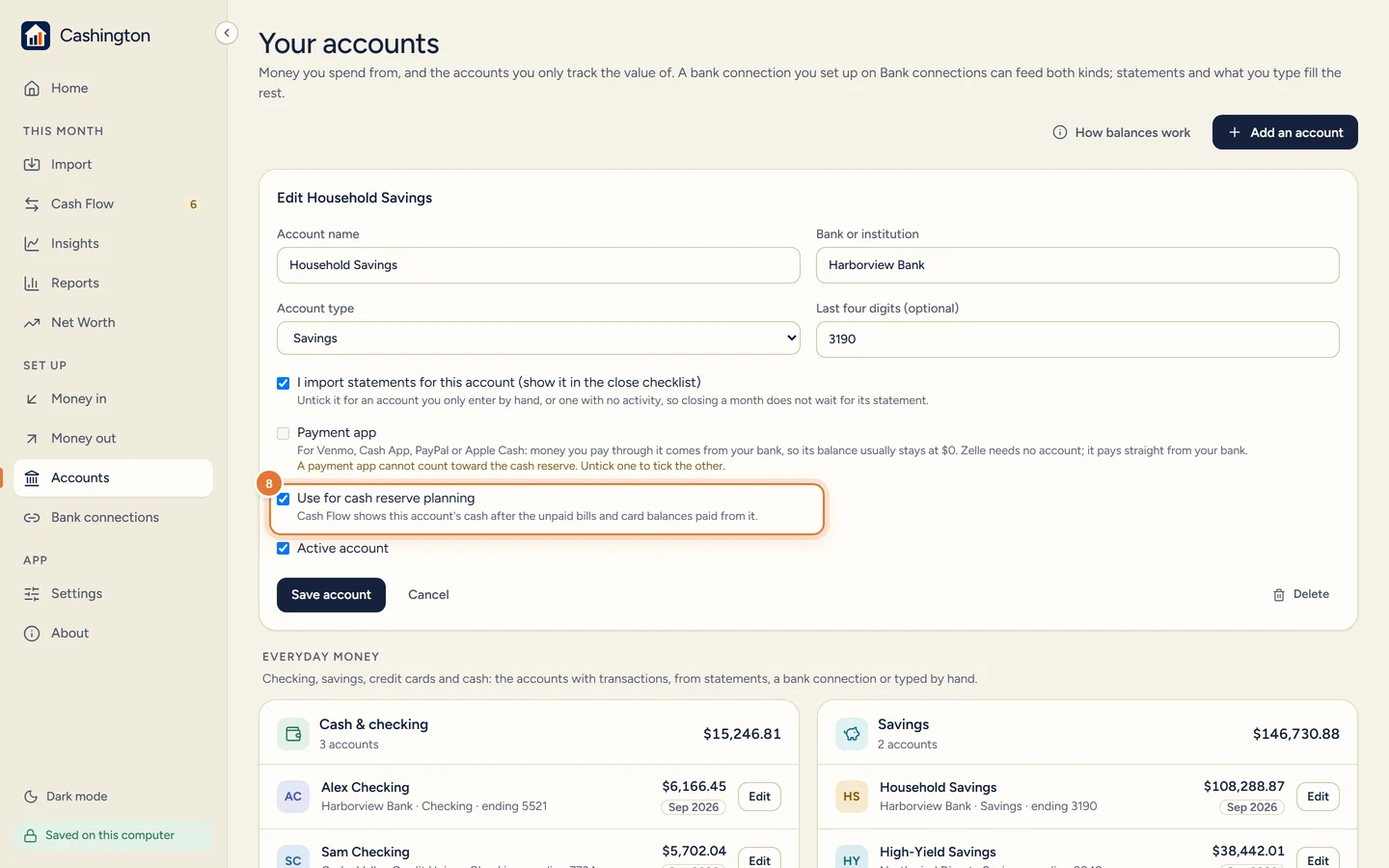
To see what is left after the bills, open Accounts, click Edit on a checking or savings account and tick Use for cash reserve planning. A credit card has a Paid from box for the account that pays it.
-
See what is left
Back on Cash Flow, Cash after bills and cards lists each of those accounts: its cash, the unpaid bills it pays, the card balances paid from it, what is needed and what is left after the reserve.